Claude can already read a CSV, draft a cold email, and tell an interested reply from an out-of-office. What it cannot do on its own is send, warm a mailbox, or know that the person it is about to follow up with answered on LinkedIn an hour ago. Tim Carden's LinkedIn post on running cold email through Claude Code describes the usual setup well: lists in one tool, sending in another, copy in a third, and "you are the integration layer". Handing that glue work to an agent helps. But there is one join an agent cannot make reliably from the outside. Email and LinkedIn belong in one sequence with one contact record, so that a reply on either channel stops both. When the two channels live in two tools, Claude can only reconcile exports after the fact, and the prospect who already said yes on LinkedIn still gets email three the next morning.
This page assumes you already use Claude, on the web, on desktop, or in Claude Code. It shows what to ask once Claude can see your campaigns, what each prompt changes, and the handful of steps that still happen in a browser.
What can Claude do once it is connected?
Each request below runs real commands against your account. Claude shows what it is about to do before anything reaches a prospect, and test emails only go to you.
| What you ask | What Claude does | Does it change anything? |
|---|---|---|
| "Help me with cold email" | Checks your account: trial status, how many inboxes are warmed up, and what the next step is | No |
| "Write a sequence for fintech CTOs" | Asks about your offer and proof, drafts email and LinkedIn steps, and builds the campaign | Creates a campaign; sends nothing |
| "Import this CSV and validate it" | Imports your list into the campaign and runs validation, which costs 1 credit per email | Spends credits after you say yes |
| "Send me the emails as a test" | Sends every email step to your own inbox, filled in with a real contact's details | Sends to you only |
| "Launch to these contacts on Monday at 9" | Activates the campaign at that time | Yes, after you say yes |
| "How's the campaign doing?" | Opens, replies, bounces and meetings, per step and per A/B variant | No |
| "Check my deliverability" | Inbox and domain health, bounce reasons, and a placement test across 10 seed inboxes (50 credits per default test) | Asks before running the test |
| "Any replies?" | Unread replies with who wrote, which campaign, and how interested they are, with drafts for you to approve | Sends a reply only after you approve it |
Two things are deliberately missing from that table. Claude does not find leads for you; bring a CSV or export from your lead tool. And Claude does not connect your Google, Outlook or LinkedIn accounts; that is a sign-in you do in a browser, covered below.
How do you connect Claude?
There are two routes, depending on where you use Claude. Both sign you in with OAuth. There is no API key to copy.
Claude on the web or desktop. SuperSend is not in Claude's connector directory yet, so you add it as a custom connector. Open Settings, then Connectors, then Add custom connector, and paste https://mcp.supersend.io/mcp. Sign in to SuperSend when asked. From then on, setup and campaign review show up as cards in the chat.
Claude Code. Install the plugin, then say "help me with cold email":
claude plugin marketplace add Super-Send/claude-code-plugin
claude plugin install supersend@supersend
The plugin adds the cold email playbook and a short brief about your account at the start of each session. Sign-in works with a link and a code: supersend login shows them, you approve in the browser, and you are in.
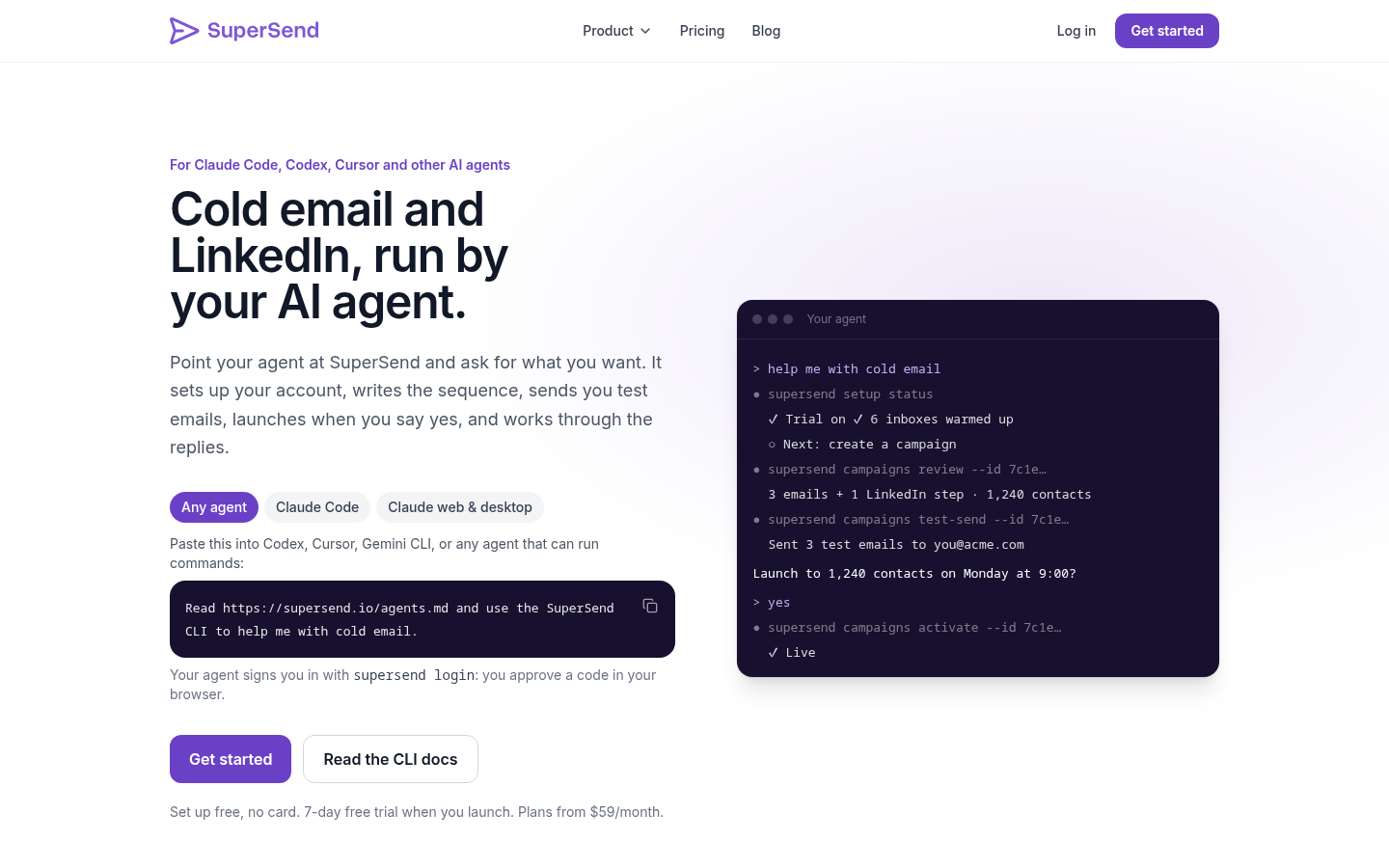
Outreach2day's post of Claude Code prompts for cold email gives a rule worth keeping for any agent that touches a sending account: allow reads freely, keep every write on manual approval. The SuperSend connector is built around the same rule, so you do not have to configure it. Claude asks before launching a campaign, before sending a reply, and before anything that costs money, like buying inboxes or running a placement test. Sign-in and payments happen in your browser, not in the chat. Any campaign pauses with one command. The full setup steps for both routes are on SuperSend's page for AI agents.
What still happens in the browser?
Getting inboxes to send from is the one part of this that cannot be a chat message, and it is worth being exact about what Claude does and does not do here.
- Inboxes you already own. Google and Outlook sign-in, or SMTP credentials, happen in the SuperSend app. Ask Claude for setup status and it hands you the exact link to open. LinkedIn accounts connect the same way, in the browser.
- Inboxes you buy. Claude can plan how many domains and inboxes a campaign needs and hand you a checkout link. Nothing is charged until you pay in the browser. After payment, the bought inboxes arrive connected, with SPF, DKIM and DMARC already set, and warmup starts on them without you doing anything. They show up in 24 to 48 hours. Inboxes bought this way are $5 per month each and domains are $13 per year. There are also purchase tools that charge a saved card, and they run only after you confirm the exact cost.
- After connecting. Claude can turn on warmup for connected inboxes and group inboxes and LinkedIn accounts into sender profiles that a campaign sends from.
Buying through SuperSend and bringing your own are both normal paths. If you are deciding how many domains and mailboxes you need before you buy anything, our guide to setting up cold email domains and inboxes covers the arithmetic.
Prompt 1: Build a sequence with email and LinkedIn steps
Write a four-step sequence for seed-stage fintech CTOs. Two emails, a LinkedIn connection request after the first email, and a LinkedIn message after the second. Ask me about the offer and proof before drafting.
Claude asks what you sell and what proof you have, drafts each step, and builds the campaign. The useful detail is what the sequence does once a contact answers. A reply on either channel stops the rest of the sequence for that contact, which is the whole reason to keep both channels in one place rather than having Claude stitch two tools together.
Before you launch, ask for a test send. Every email step lands in your own inbox filled with a real contact's details, so you see the merge fields the way the prospect would. Two limits to know before you set the cadence: the default send cap is 15 emails per mailbox per day, adjustable per mailbox, and LinkedIn senders are capped per plan (one on Starter, two on Growth, five on Scale, with extra senders at $29 per month each). Our post on LinkedIn automation limits explains why the LinkedIn side should run slower than the email side, and our cold email and LinkedIn sequence playbook is the structure Claude's drafts should follow.
Prompt 2: Clean the list in Claude, then import and validate it
Here is my Apollo export. Drop duplicate emails, rows where the industry is not SaaS, and anything on a free mail domain. Show me the before and after counts. Then import the result into the fintech CTO campaign and tell me how many credits validation will cost before you run it.
The cleaning half of this happens inside Claude with the file alone, before the connector is involved, and it is worth doing in that order. Validation costs 1 credit per email, and Claude asks before anything that costs money, so you want the duplicates and off-ICP rows gone before you pay to check them. Contacts are unlimited on every plan, so there is no reason to prune a good list; there is every reason to prune a bad one.
Validation is also what keeps the campaign alive. A campaign auto-pauses when its invalid-recipient bounce rate goes over 3 percent, checked after 100 or more sends, and small campaigns pause after 10 invalid-recipient bounces. The threshold is adjustable per campaign. A list that was validated going in rarely trips it.
Prompt 3: Find out why replies are low
The fintech CTO campaign has been live ten days. Show me opens, replies and bounces per step and per variant, then check inbox and domain health for the mailboxes it sends from. Tell me whether this looks like a copy problem or a placement problem before suggesting changes.
Claude pulls the per-step and per-variant numbers first. The order of diagnosis matters. Bounces come first, because a bounce rate climbing toward the guard means the list is the problem, not the copy. Health per mailbox and domain comes second. Salesforge's blog post on automating cold email with Claude Code offers a useful tell at this stage: a mailbox with zero replies in a week, not even an out-of-office, is probably landing in spam. Copy comes last, and only once you know the mail is arriving.
If health looks fine and replies are still flat, ask for a placement test. It sends to 10 seed inboxes by default, always including Google and Outlook, and runs on plan credits at 5 credits per seed, so Claude will tell you it costs 50 credits and wait. Per-mailbox placement is the signal a DNS checker cannot give you: a mailbox can pass SPF, DKIM and DMARC and still land in spam, and nothing in the authentication report shows it. The deliverability tooling behind these prompts is described on our deliverability monitoring page.
Prompt 4: Summarize the interested replies
Any replies since yesterday? Group them by interest, tell me which campaign each came from, and draft a two-sentence answer for the interested ones with two meeting slots next week. Do not send anything.
Replies come back sorted by interest, with who wrote and which campaign they belong to, and a draft for each that you approve or edit. A human reply marks that contact as finished across every channel, so the LinkedIn message scheduled for Thursday does not go out to someone who booked on Tuesday. Nothing is sent until you say so.
This is the prompt most people end up running every morning, because it turns a mixed inbox into a short ranked list. The same view exists in the app, described on our unified inbox page, for the days you want to read threads in full rather than in summary.
What does it cost?
Running outbound through Claude costs the same as running it in the app. Every feature is in every plan; the plans differ by monthly email volume and LinkedIn senders.
| Plan | Monthly | Yearly | Emails per month | LinkedIn senders | Overage per email (monthly plans) |
|---|---|---|---|---|---|
| Starter | $59 | $600 ($50/mo) | 15,000 | 1 | $0.006 |
| Growth | $99 | $1,008 ($84/mo) | 50,000 | 2 | $0.004 |
| Scale | $319 | $3,252 ($271/mo) | 200,000 | 5 | $0.0025 |
Contacts are unlimited on every plan. Add-ons: an extra LinkedIn sender is $29 per month, a Google or Outlook inbox bought in SuperSend is $5 per month, and a domain is $13 per year. Signing up is free with no card. Launching a campaign or turning on warmup starts a 7-day free trial with a card on file, charged on day 7 unless you cancel. Full details are on the pricing page.
Frequently asked questions
Do I need to know how to code? No. You ask in plain English and Claude runs the commands. You will open a few links in your browser: to sign in, to add a card for the free trial, and to pay if you buy inboxes.
Will Claude send emails without asking? No. It asks before launching a campaign, before sending a reply, and before anything that costs money. Test emails go only to your own inbox.
Can Claude buy domains and inboxes for me? It can plan them and give you a checkout link. You pay in the browser, nothing is charged before that, and the inboxes arrive connected and warming up within 24 to 48 hours. Connecting inboxes you already own, and connecting LinkedIn, is a sign-in you do yourself.
Does Claude find leads? No. Bring a CSV or an export from your lead tool, and Claude imports it into the campaign.
Email, LinkedIn, or both? Any of the three. A sequence can mix email and LinkedIn steps, and a reply on either channel stops the rest of the sequence for that contact.
Which Claude does this work with?
Claude on the web and desktop, through the custom connector at https://mcp.supersend.io/mcp, and Claude Code, through the plugin. Other agents that can run terminal commands use the same CLI.
If you already pay for Claude and run your own outbound, the setup takes a few minutes: add the connector or install the plugin, sign in, and type "help me with cold email". The steps for both routes are on SuperSend's agents page, and you can create a free SuperSend account first, with no card needed.